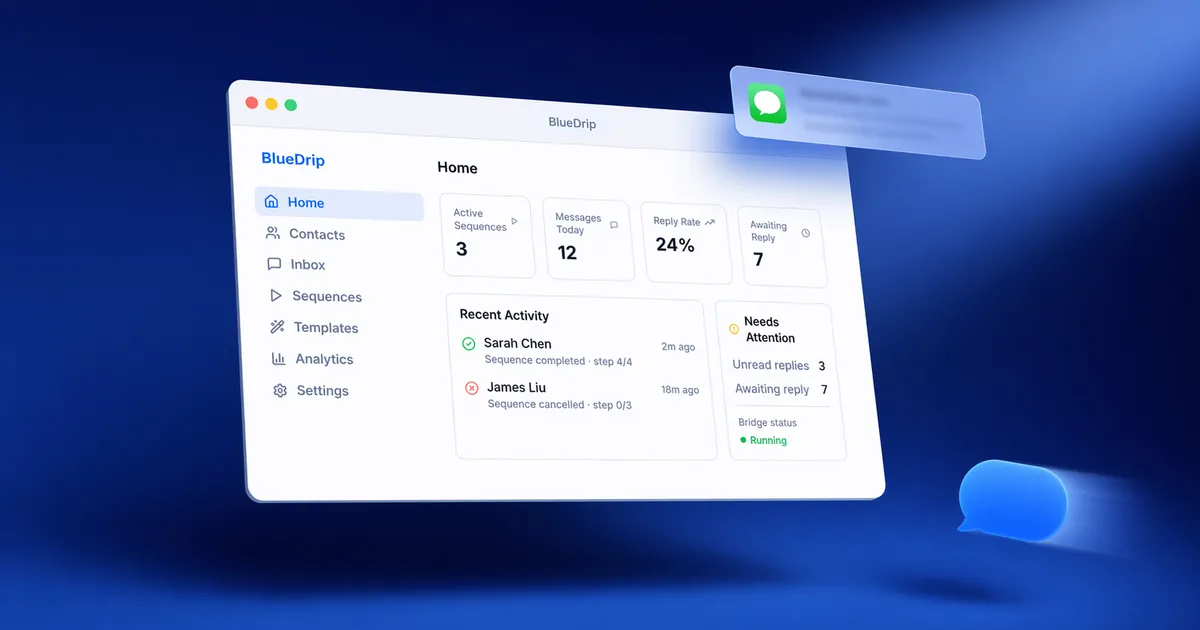
Three Minutes to Installed
BlueDrip is a Mac app. You download the DMG, open it, drag the BlueDrip icon into your Applications folder, and launch the app from there. A setup wizard walks you through the rest: a quick permissions step (macOS asks if it’s OK for BlueDrip to read your Messages history and send notifications), and then a single field for your license key.
Paste the key, and you land on the dashboard.
That’s the whole install. No account to create, no sign-in screens to click through, no phone verification, no “we’ve sent you a confirmation email” step. BlueDrip doesn’t need to log you into anything, because it runs on your Mac using the Apple ID you’re already signed into. If you have your license key handy, the clock from “I just downloaded this” to “I’m looking at an empty dashboard” is about three minutes.
You Don’t Start From Scratch (Unless You Want To)
The first question new users ask is “OK, now what?” The answer has two versions, and both are fine.
The template path. BlueDrip ships with five built-in sequences covering common outreach patterns — the kinds of flows most small businesses need in their first week. You pick one, open it in the editor, rewrite the copy in your own voice, and save it under your own name. The structure and the timing are already there; you’re just filling in the parts that are actually yours. This is the fastest way to get from installed to sending, and most people start here.
The from-scratch path. If none of the templates match what you need, the builder lets you start empty and drop in steps — messages, delays, branches — the way you’d sketch out a flow on a whiteboard. This is the option for anything that doesn’t fit a standard follow-up pattern: a multi-step onboarding for a specific product, a seasonal campaign tied to a specific date, a sequence that branches depending on how someone replies.
Neither path is “the right one.” The template path is faster; the from-scratch path is more flexible. Most operators end up using both — templates for the repeatable stuff, custom sequences for anything that doesn’t fit.
Loading Up Contacts
If you already have a CSV export from your CRM, drop it in the contacts tab and BlueDrip figures out which column is the name, which is the phone number, and which ones are the custom fields you might want to reference later in messages. A preview shows you what it found before you confirm.
If you don’t have a CSV — which is more common than you’d think for small operators working out of a notes app or a spreadsheet — you can also add contacts by hand. Slower, but perfectly fine for a starting list.
One thing worth repeating from the companion post on iMessage blocks: don’t enroll 500 people in your first sequence. Start small. Pick 20 or 30 contacts you actually know, run the sequence once, and see what happens. The full math on why is in that post, but the short version is that a fresh sequence on a well-known list is the safest way to learn what your timing and copy need to look like before you scale up.
The First Send
When you click start, BlueDrip doesn’t blast the first message to everyone at once. It spaces sends out with natural delays — a few minutes between each one, with some random variation — so the pattern looks like a person typing one message at a time, not a machine firing off a batch.
You’ll see the first few messages go out from your Mac’s Messages app, one at a time. Some of them will be blue bubbles, going out as iMessage to recipients with Apple devices. Others will be green bubbles — regular SMS from your real phone number — going out to recipients who don’t have iMessage. Same number, same sequence, same BlueDrip dashboard. The bubble color just depends on what the person on the other end is using.
That’s the point at which most new users realize something: they’re not watching a marketing tool. They’re watching their own Messages app send messages that look exactly like a real text.
The First Reply
Somewhere between a few minutes and a few hours after the first send, someone will reply. When they do, three things happen at once:
- The sequence stops for that contact. No follow-up message goes out, because someone who’s already talking to you doesn’t need a nudge to keep the conversation going.
- You get a native macOS notification. Not a push notification from a cloud app — the same notification you’d get from any real incoming text, from the Messages app.
- The conversation continues in the normal Messages thread. You can reply from your Mac, from your iPhone, or from your iPad. Whatever device you normally use for texting. The thread doesn’t live inside BlueDrip; it lives where it was always going to live, in your Messages app.
That last part is the thing that’s hard to appreciate until you see it. BlueDrip sends the first message. The second message of the actual conversation — the one the person writes back — is just a text. No dashboard in the middle, no help-desk feeling, no “reply from inside the app.” You continue the conversation the same way you’d continue any other conversation on your phone.
What’s Left After Your First Hour
At the end of your first hour, you’ll have BlueDrip installed, a template adapted or a custom sequence built, twenty or thirty contacts enrolled, a handful of messages sent, and — if the timing is lucky — your first reply.
The rest of the work isn’t technical. It’s the slow part: writing copy that sounds like you, cleaning up your contact list, figuring out which sequences match which kinds of people, noticing which messages get responses and which ones don’t. None of that shows up in the first hour.
But the first hour is what gets you to the place where you can start doing it.